 Kitchen AI
 Modern
 Scandinavian
 Japandi
 Modern farmhouse
 Industrial
 Quiet luxury
Before & after
Kitchen Before and After: Two Real Rooms, Six Finishes Each
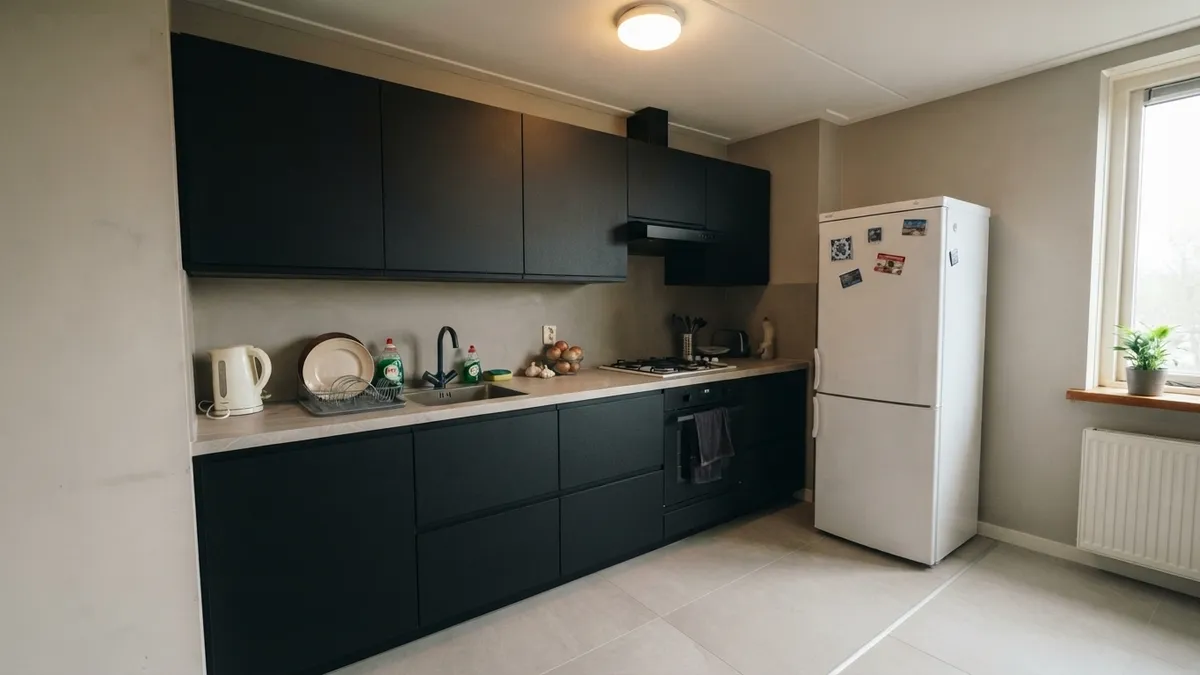
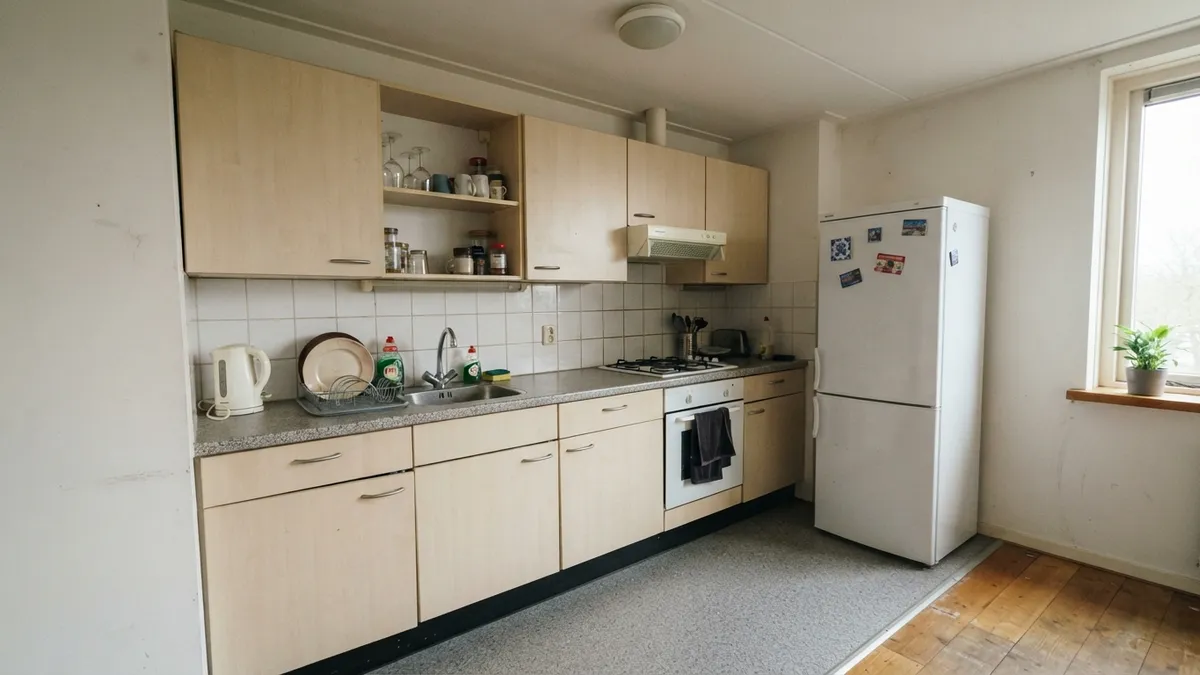
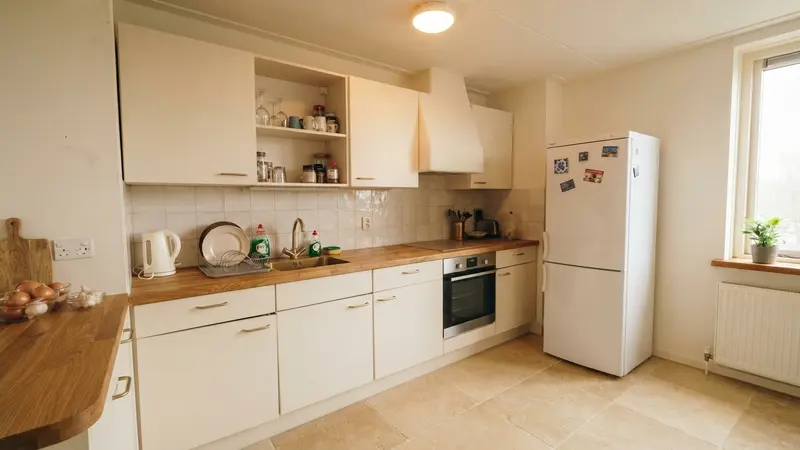
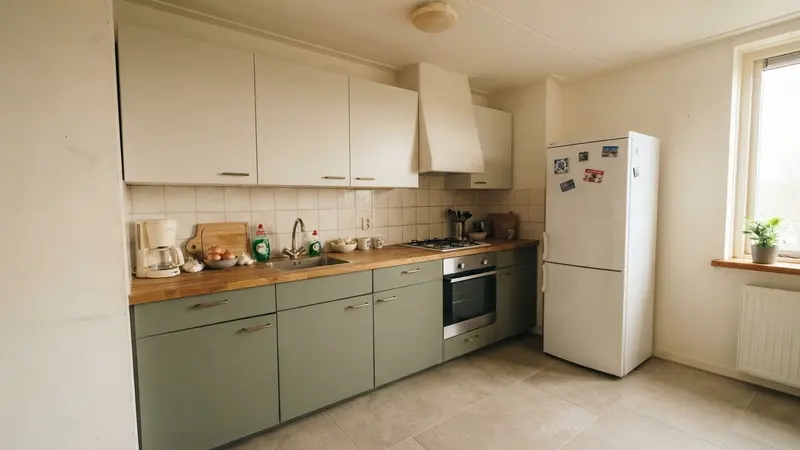
These are two real, dated kitchens, not staged photos, each redesigned in six different finishes. Drag the slider to compare before and after, then look at what changes underneath the fronts: the countertop, the backsplash and the floor.

Free to try. No account needed.
Kitchen 1
A Dated U-Shaped Kitchen in a UK Home
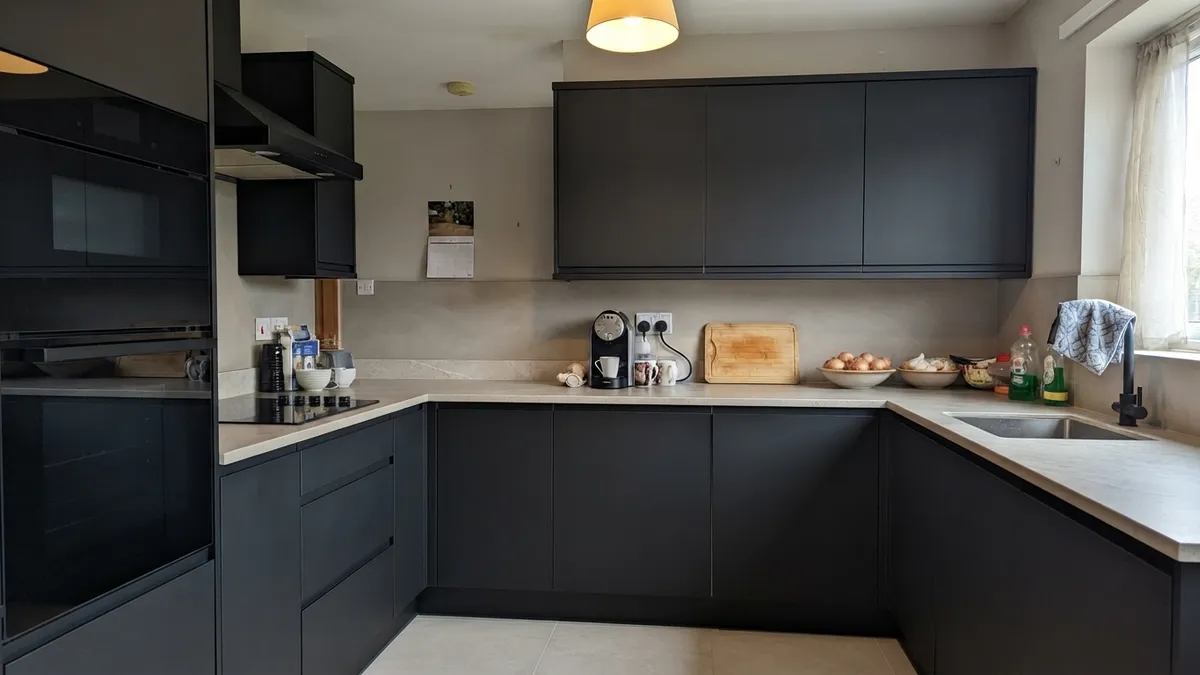
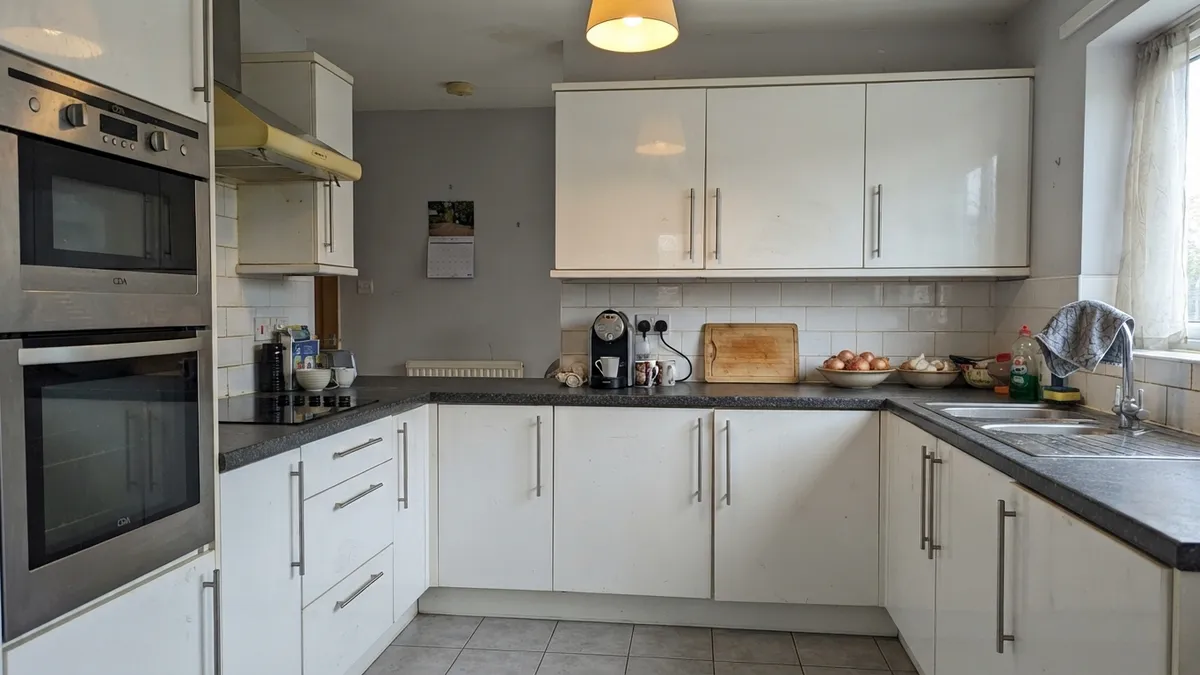
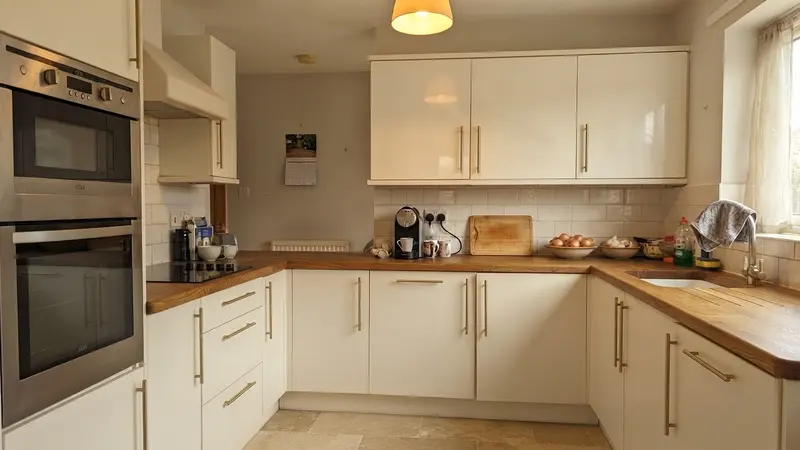
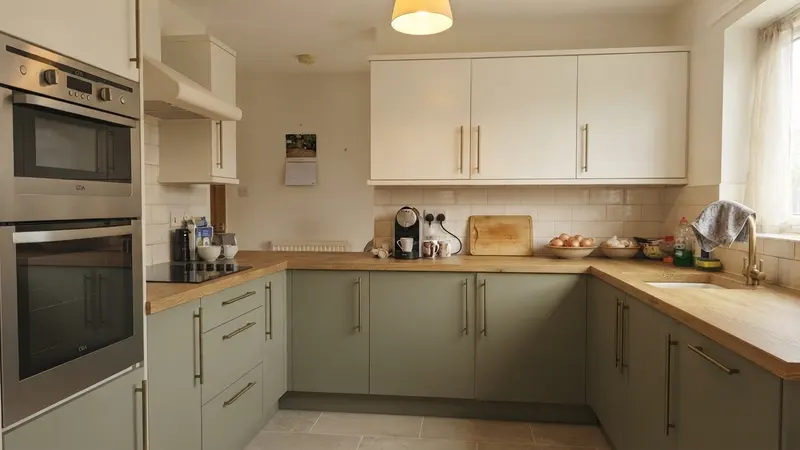
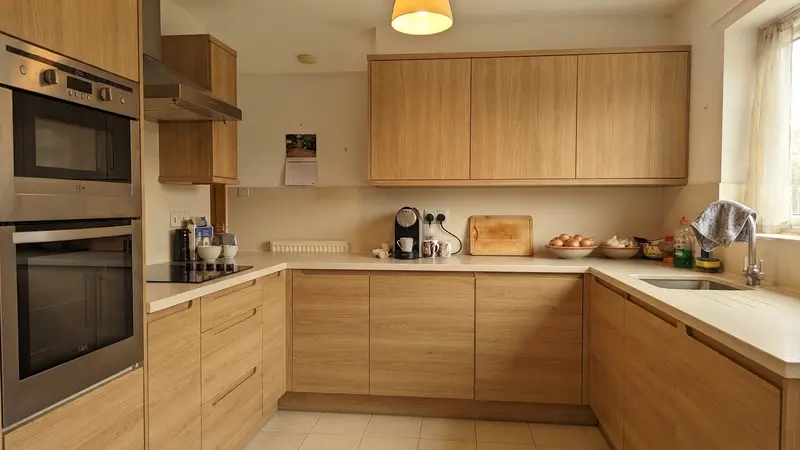
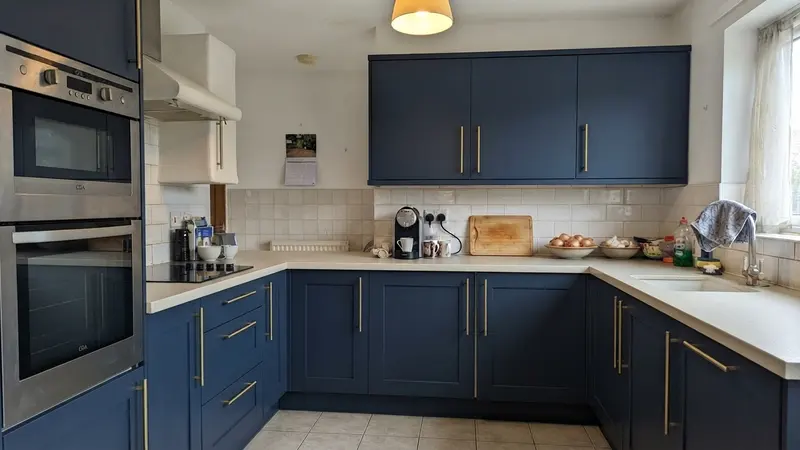
This kitchen sits in a British home: a U-shaped layout with high-gloss cream slab fronts, a dark speckled countertop and cream metro tiles, a combination that was common in new-builds from the 2000s. If your own kitchen still has that gloss-and-speckle look, or a similar U-shape with built-in ovens to one side, this is the closest comparison on this page.
Kitchen 2
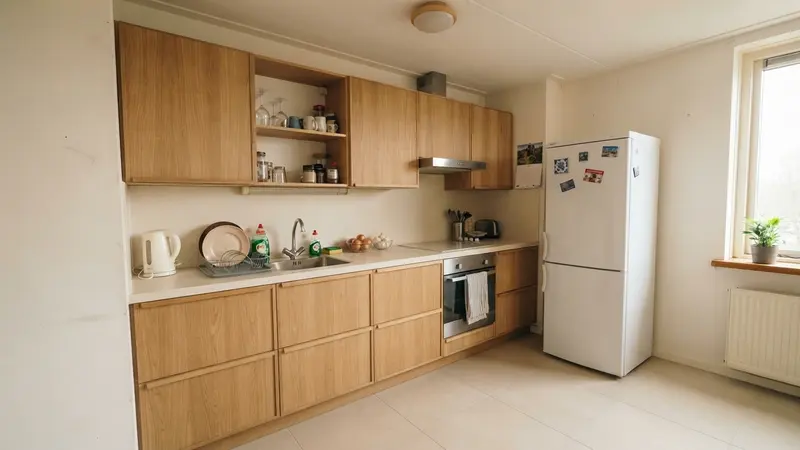
A Straight-Run Kitchen in a Dutch Apartment
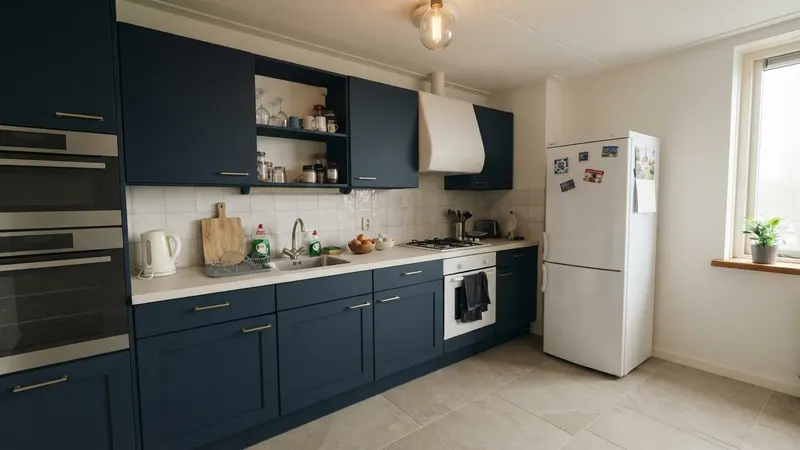
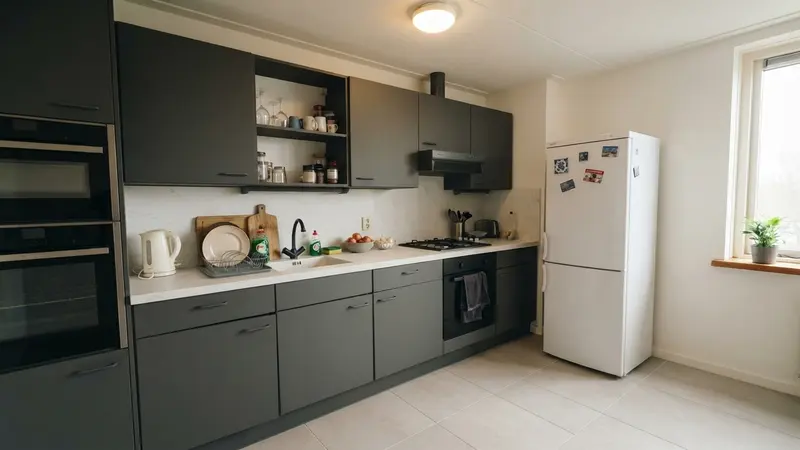
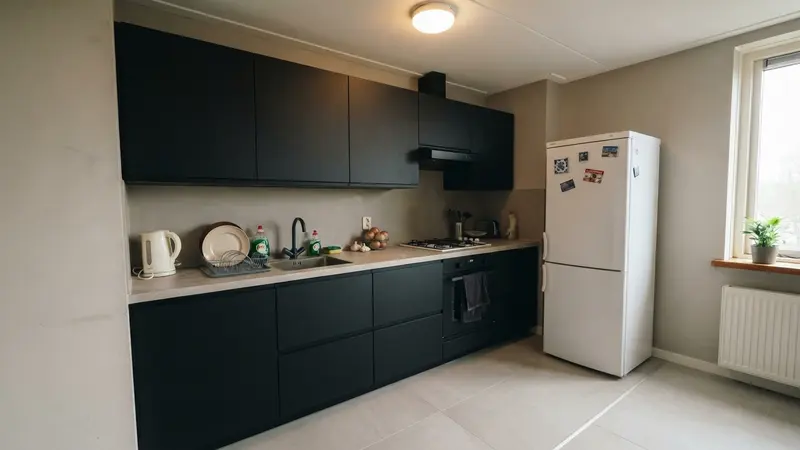
This one is a straight-run kitchen in a Dutch apartment: light beech-look fronts, a grey speckled countertop, small white square tiles and a grey vinyl floor, with a freestanding fridge next to the units. It is a common rental-kitchen layout in the Netherlands, and a useful comparison if you are not changing the layout at all, only refinishing what is there.
Honesty check
What Actually Changes
Every example on this page changes more than the cabinet fronts. The app treats fronts, countertop, backsplash and flooring as four separate choices, and in most of these variants at least three of them move at once.
Cabinet fronts set the color and the door style, and they are usually what people notice first. Handleless and flat reads modern, a shaker profile reads more traditional, and a two-tone kitchen, cream on top and sage green below in the examples above, splits the wall into a lighter and a heavier half.
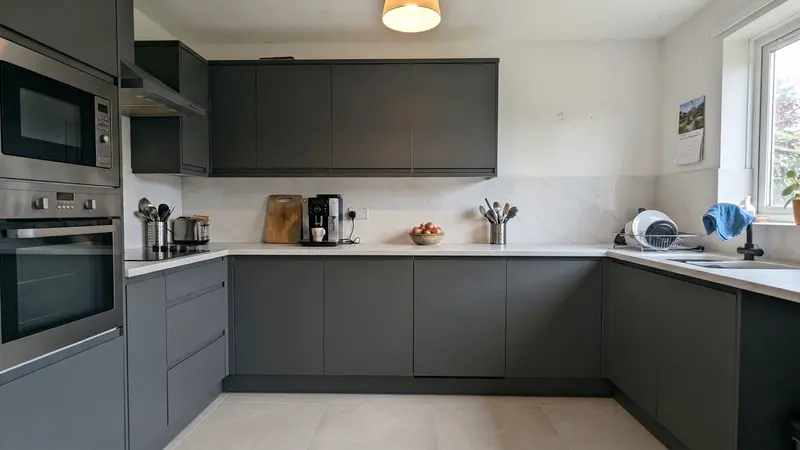
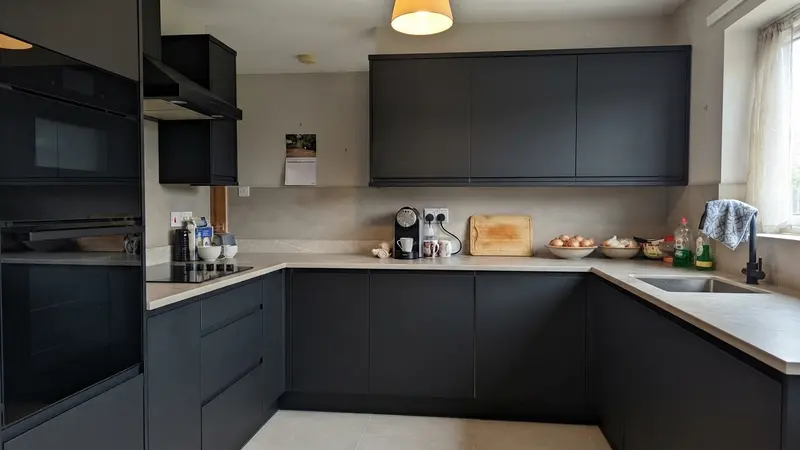
The countertop changes the light in a room more than its size suggests. Swapping the original dark speckled countertop for a light stone or marble-look surface brightens the whole photo, not just the counter itself.
Backsplash is the one element that sometimes stays and sometimes goes. In several variants above, the original tiles are left in place on purpose, which is exactly what you would see if you replaced only the fronts and countertop in your own kitchen. In others, the tiles are removed for a flat plastered wall or swapped for a new material.
Flooring is often the last thing people think to change, and one of the things that shifts the mood of a photo the most. Large-format tiles or travertine read calmer than the original small tiles or vinyl in both kitchens here, simply because there is less pattern for the eye to process.
In a handful of variants, the model also added something that was not in the original photo: an oven column on the left in two of the second kitchen's variants, a short extra counter section in another, and a radiator below the window in one more. That is not something to plan around, but it is worth checking your own result against your photo before you settle on a material, the same way you would with any of these finishes.
What the app does not do: it does not move walls, windows or the position of your cabinets, and it does not produce a technical drawing, a floor plan or a price quote. What you see is a photorealistic impression of one material choice.
How to read it
What a Before-and-After Can Hide
A convincing before-and-after is not hard to fake, and not always dishonest either: a wider lens, better light, a tidied counter each do a lot of the work on their own. Here is what to check, on this page or on anyone else's.
Camera position and focal length do more work than any material choice. Move the camera back and switch to a wider lens for the after shot, and a room reads larger even though nothing about it changed. The only fair comparison is the same spot, the same height and the same crop, which is why the slider above works: both images were framed to match.
Light sells a renovation before the materials do. A before shot taken under artificial light next to an after shot in bright daylight mostly compares the weather, not the kitchen. Check where the shadows fall, and whether the window does the same thing in both photos.
Styling accounts for more of the effect than most people expect. Clear the counter, add a plant and a few new accessories, and a kitchen looks redone before a single surface changes. The photos above keep the same objects in both images on purpose: the same cutting board, the same onions, the same dish rack.
A tight crop hides whatever was left alone. The wider the frame, the more of the room has to hold up to scrutiny; the tighter the crop, the easier it is to leave an untouched corner just out of shot.
The last thing worth checking is whether more changed than was promised. An example billed as new cabinet fronts, where the floor, the backsplash and the lighting are all different too, is not measuring what it claims to. The captions on this page say exactly which elements moved in each variant, and in five of the twelve the original tiles stay exactly where they were. The images have their own limit too, noted in the FAQ below: in a few variants the model added something that was not in the photo.
Same spot
Camera position and height match in both photos, not just the crop.
Same light
The shadows and the window do the same thing in the before and after.
Same objects
Nothing was cleared off the counter or added just for the photo.
What changed
The exact elements that moved are named, not left for you to guess.
How it works
See It in Your Own Kitchen, Not a Showroom
- 1
Take a photo
Photograph your current kitchen or an empty room. That is all the app needs to get started.
- 2
Pick your materials
Choose the cabinets, countertop, backsplash and flooring, or copy the look of a kitchen you like.
- 3
Compare directions
Save the variants side by side and see which one fits your space before you commit to anything. If one of these directions already has your attention, we went deeper on two of them: whether off-white cabinets are still in style and whether black cabinets turn out too dark in a room like yours.
Frequently asked
About These Examples
Does the app change my kitchen's layout?
No. The layout, walls, windows and cabinet positions stay exactly where they are. The app changes the fronts, countertop, backsplash and flooring you choose, not the shape of the room.
Can the AI add things that were not in my photo?
Occasionally, yes. The examples above show real cases: an oven column, a short counter section and a radiator that the model added on its own. It does not happen often, but it is worth checking your result against your photo before you decide on a material.
Are these images accurate enough to order materials from?
No. They are a photorealistic impression, not a technical drawing or a supplier's exact finish. Read how we label that in the AI transparency notice.
The images on this page are AI-generated and give an impression, not a technical drawing. Read how we mark that in the AI transparency notice.
Do This With Your Own Kitchen
One photo of the kitchen you have now, and the same set of directions to compare. Free to try, no account needed.